
Oracle Database Express Edition installation easily
[fusion_builder_container admin_label=”” hundred_percent=”no” equal_height_columns=”no” menu_anchor=”” hide_on_mobile=”small-visibility,medium-visibility,large-visibility” class=”” id=”” background_color=”” background_image=”http://groupturbo.com/newsiteturbo/wp-content/uploads/2017/11/turbo_texture.jpg” background_position=”center center” background_repeat=”no-repeat” fade=”no” background_parallax=”none” enable_mobile=”no” parallax_speed=”0.3″ video_mp4=”” video_webm=”” video_ogv=”” video_url=”” video_aspect_ratio=”16:9″ video_loop=”yes” video_mute=”yes” video_preview_image=”” border_size=”” border_color=”” border_style=”solid” margin_top=”” margin_bottom=”” padding_top=”20px” padding_right=”” padding_bottom=”20px” padding_left=””][fusion_builder_row][fusion_builder_column type=”1_1″ layout=”1_1″ spacing=”” center_content=”no” hover_type=”none” link=”” min_height=”” hide_on_mobile=”small-visibility,medium-visibility,large-visibility” class=”” id=”” background_color=”” background_image=”” background_position=”left top” undefined=”” background_repeat=”no-repeat” border_size=”0″ border_color=”” border_style=”solid” border_position=”all” padding_top=”0px” padding_right=”20px” padding_bottom=”0px” padding_left=”20px” margin_top=”” margin_bottom=”” animation_type=”” animation_direction=”left” animation_speed=”0.3″ animation_offset=”” last=”no”][fusion_text columns=”” column_min_width=”” column_spacing=”” rule_style=”default” rule_size=”” rule_color=”” class=”” id=””]
I. Installing Oracle Database Express Edition »▲
To install Oracle Database XE 11.2 you must be logged in as an administrator on your computer.
I-A. Step 1: Download “Oracle Database Express Edition 11 g Release 2″ ▲
You can find the software on the official Oracle page : http://www.oracle.com/technetwork/database/database-technologies/express-edition/downloads/index.html.
I-B.Step 2 : run the installation ▲
Before you install Oracle Database XE 11.2, make sure you have uninstalled all other Oracle databases from your computer.
Unzip the downloaded file and open the folder. Double-click setup.exe The installation screen appears (Figure 1).
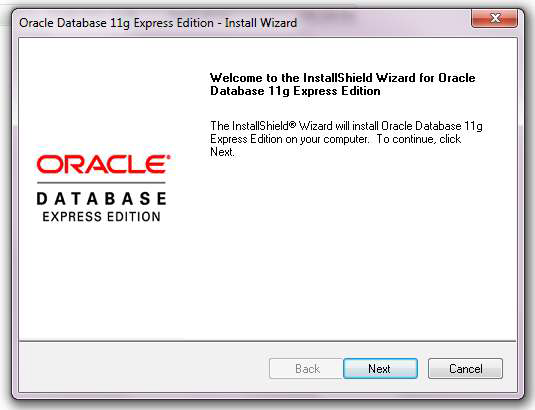
Figure 1: Installation screen
Click on the Next button.
I-C. Step 3: Configure your installation▲
- Accept the terms and conditions of use and press Next. Next.
- Choose the installation directory. Click on Browse to change the default directory. Be careful not to select a directory with spaces. Click on Next.
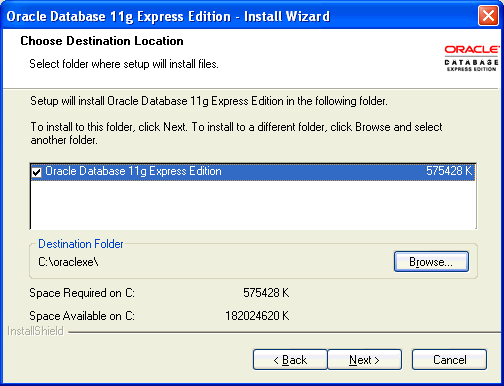
Figure 2: Location of the installation
- Choose the password used for the SYSTEM, and confirm it. Click on Next.
- In the summary window, click Install if you are satisfied, or on Back to go back and change some elements.
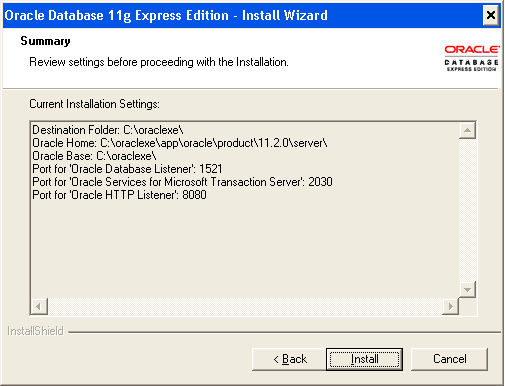
Figure 3: Installation summary - Clik on Install to complete the installation.
I-D. Step 4: Start using “Oracle Database XE 11.2”▲
Normally, at the end of the installation, the database is an operator and is started. If it’s not the case :
- go to Start menu – All Programs – Oracle Database 11g Express Edition ;
- click on Start Database.
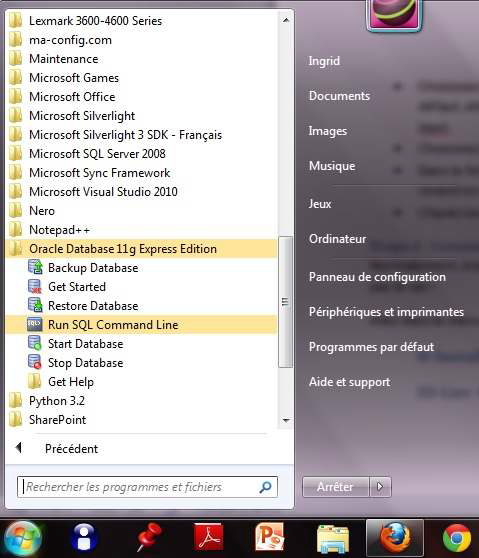
To stop the base, you have to click on Stop Database.
I-E. Step 5: Connect to the database▲
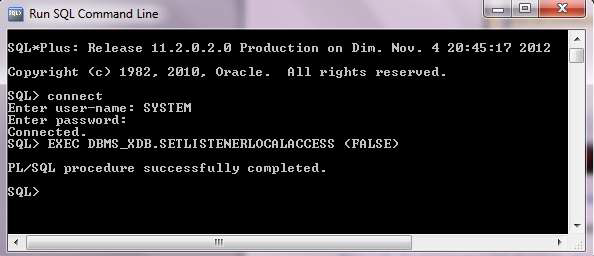
In the Start menu – All Programs – Oracle Database 11g Express Edition, click Run SQL Command Line.
In the command line, type:
- connect ;
- SYSTEM: to connect using the user-name SYSTEM ;
- the password you gave during the installation.
The message Connected appears.
To make your database accessible by remote clients, type the command: EXEC DBMS_XDB.SETLISTENETLOCALACCES (FALSE)..
Source: click here
[/fusion_text][/fusion_builder_column][/fusion_builder_row][/fusion_builder_container]
John Cander
October 31, 2018 at 2:30 pmI think this tutorial is verry useful